
Guide
How to Generate Better AI Images: A Practical Prompt-to-Final Workflow
A practical, repeatable workflow for writing stronger prompts, choosing the right canvas and model, using references, comparing variations, and refining an AI image for real-world use.
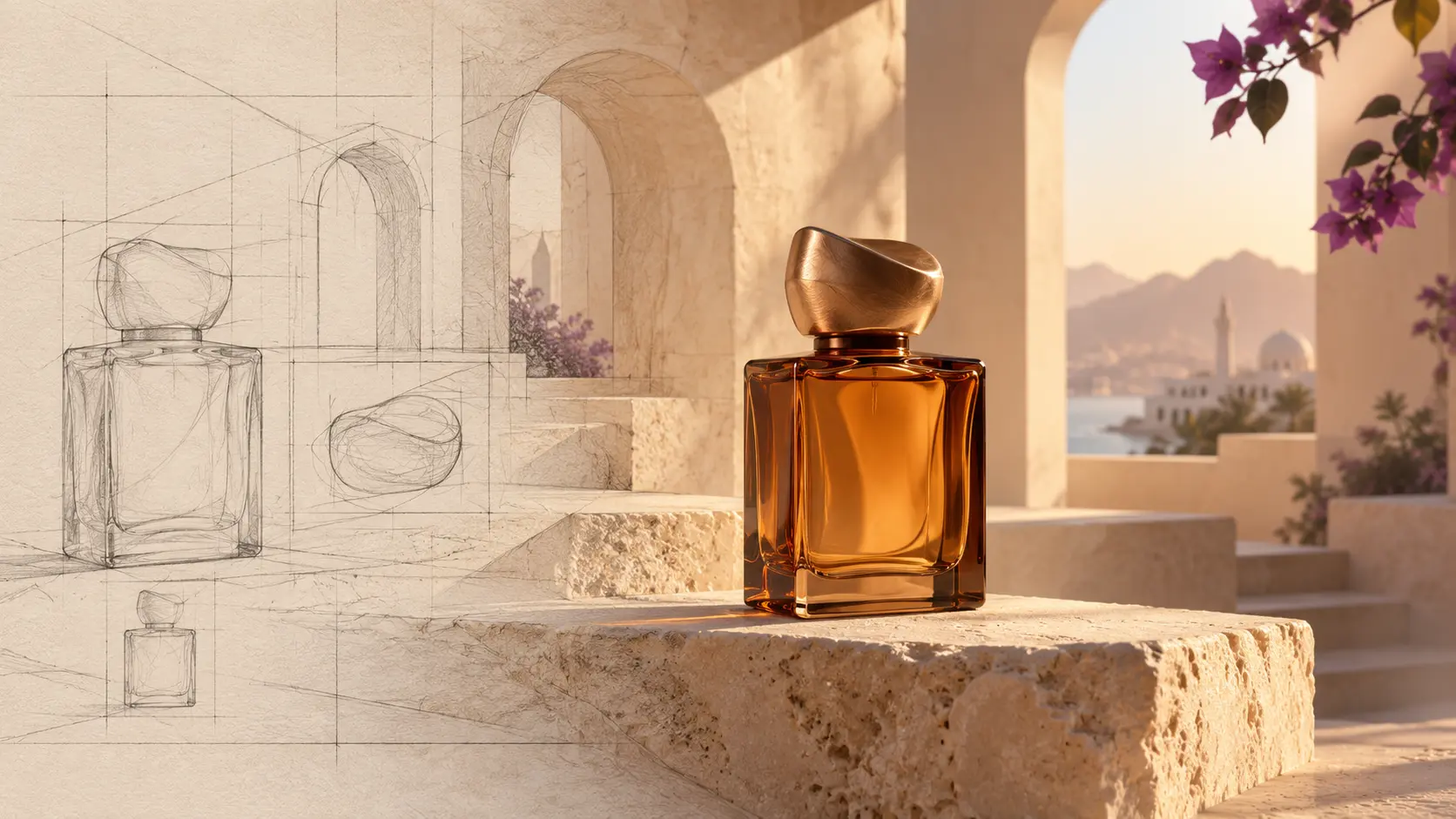
Four deliberate decisions
A repeatable path from idea to image.
Strong results rarely arrive by accident. Give each pass one clear purpose, keep what works, and change one variable at a time.
Direction beats decoration.
01
Brief
Decide the job
02
Prompt
Direct the frame
03
Generate
Compare options
04
Refine
Finish with intent
A good AI image does not begin with a longer list of adjectives. It begins with a clearer decision. Before you choose a model or type a prompt, decide what the image needs to do: stop a scrolling customer, introduce a product, explain an idea, or establish a mood.
This guide shows a practical workflow for moving from a loose idea to a finished visual. We will build one example throughout: a premium campaign image for an unbranded amber fragrance bottle in a warm, Oman-inspired setting. You can use the same method for social posts, website banners, product concepts, presentations, storyboards, and advertising.
The goal is not to describe everything. The goal is to direct the few choices that matter most.
Start with a miniature creative brief
Opening an image generator too early often leads to attractive but unusable pictures. Spend one minute defining the job first. A useful brief answers five questions:
- What are we making? A product campaign visual, editorial illustration, concept frame, portrait, or background?
- Who should notice it? A luxury customer, a busy social-media audience, a technical buyer, or an internal team?
- What should they feel? Calm, curious, confident, excited, reassured, or surprised?
- Where will it appear? A website hero, square post, vertical story, catalogue, or presentation?
- What must remain true? Product shape, brand colours, cultural details, space for copy, or a recognisable character?
For our example, the brief is: Create a premium fragrance campaign image for a website and social launch. It should feel warm, crafted, and unmistakably connected to Oman without becoming a travel cliché. The bottle must remain the visual focus, and the composition needs quiet space for a headline.
Build the prompt in layers
A dependable prompt gives the model a hierarchy. Start with the subject and scene, then add composition, light, visual treatment, and constraints. This is a stronger structure than stacking style words without explaining how the image should be organised.
1. Subject
Name the main subject precisely enough to remove ambiguity: an unbranded amber glass fragrance bottle with a sculptural cap.
2. Scene
Place it somewhere concrete: on a warm limestone pedestal within contemporary, Muscat-inspired arches.
3. Composition
Direct the frame: bottle slightly right of centre, low camera angle, generous negative space on the left, shallow depth behind the product.
4. Lighting
Light determines more of the mood than a long style list. Ask for warm side light, controlled glass highlights, and a soft architectural shadow.
5. Treatment and constraints
Finish with the visual language and the things that must not appear: premium editorial product photography, natural texture, no label, no readable text, no extra bottles, no watermark.
A vague first attempt might be:
Luxury perfume bottle in Oman, cinematic, beautiful, high quality.A directed version is more useful:
Premium editorial product photograph of one unbranded amber glass fragrance bottle with a sculptural cap, placed on a warm limestone pedestal inside contemporary Muscat-inspired arches. Bottle slightly right of centre with generous negative space on the left, low camera angle, warm early-morning side light, controlled highlights on the glass, natural stone texture, restrained violet flowers in the distance. No people, no logo, no readable text, no extra products, no watermark.Notice that the improved prompt is not merely longer. Each phrase has a job.
Describe visible evidence, not abstract ambition
Words such as premium, professional, and beautiful express an intention, but they do not tell the model what the camera should see. Translate the intention into visible evidence. “Premium” might mean one carefully placed object, real stone texture, controlled reflections, a restrained palette, and generous empty space. “Energetic” might mean a low angle, a diagonal composition, harder light, and visible movement.
The same principle helps with regional context. Instead of asking for a generic “Oman background,” name the visual qualities that matter: warm limestone, shaded arches, coastal haze, restrained bougainvillea, or a particular quality of morning light. Specific observation produces a more considered image and reduces the temptation to rely on clichés.
Camera language can help when it changes the result: overhead, eye-level, low angle, close product crop, wide establishing frame, shallow depth, or symmetrical composition. It is less useful to paste a long list of lens names when you do not need a particular photographic effect.
If a direction cannot be seen in the finished image, it probably does not need space in the prompt.
Choose the canvas before you generate
Aspect ratio is part of the idea. If you generate a square composition and later force it into a wide banner, you may lose the product, the negative space, or both. Start with the destination.
| Destination | Useful shape | Composition advice |
|---|---|---|
| Website hero | Wide landscape | Keep the subject away from the copy area. |
| Social feed | Square or portrait | Use a clear centre of attention that survives a small screen. |
| Story or short-form cover | Vertical | Leave safe space near interface overlays. |
| Presentation | Landscape | Reserve one side for a title or supporting points. |
Available ratios and resolutions depend on the model selected in Image Studio. Treat those controls as creative constraints, not technical chores.
Choose model and resolution with intent
There is no universal “best” model. The right choice depends on what you are testing. During exploration, favour a model and resolution that let you compare ideas efficiently. Once the composition is working, move to the detail level appropriate for the final destination.
- Explore first: test framing, mood, and subject placement before chasing tiny details.
- Produce second: use a supported higher resolution when the selected direction is worth finishing.
- Check capabilities: reference images, output count, aspect ratios, and resolution options vary by model.
- Review the estimate: Image Studio shows the expected credit and OMR cost before you commit.
This keeps creative exploration deliberate and makes costs visible before generation begins.
Keep cost attached to the decision
Image Studio quotes the selected configuration before generation. Credits are reserved when a job enters the queue and charged when the resulting media is successfully saved. Model pricing and available options can change, so this guide does not publish a fixed per-image number. The estimate shown for the current model, output count, and settings is the useful source at the moment you create.
Use references to preserve what matters
A reference image should answer a specific question. It can communicate a product shape, colour palette, material, character, or composition more reliably than another paragraph of prose. It should not be treated as permission to copy somebody else’s work.
For a product campaign, a clean product reference can anchor the bottle while the prompt directs the environment and light. For a recurring character, references can help maintain recognisable features. For an art direction exercise, a reference may communicate colour relationships while the generated scene remains original.
Use only images you own or are permitted to use. In Image Studio, reference controls appear when the selected model supports them, and existing assets can remain organised in your Asset Library.
Generate variations like an art director
Randomly rewriting the whole prompt makes it difficult to learn why a result improved. Keep the strongest version and change one variable at a time:
- soft morning light versus hard noon light;
- eye-level camera versus a lower product angle;
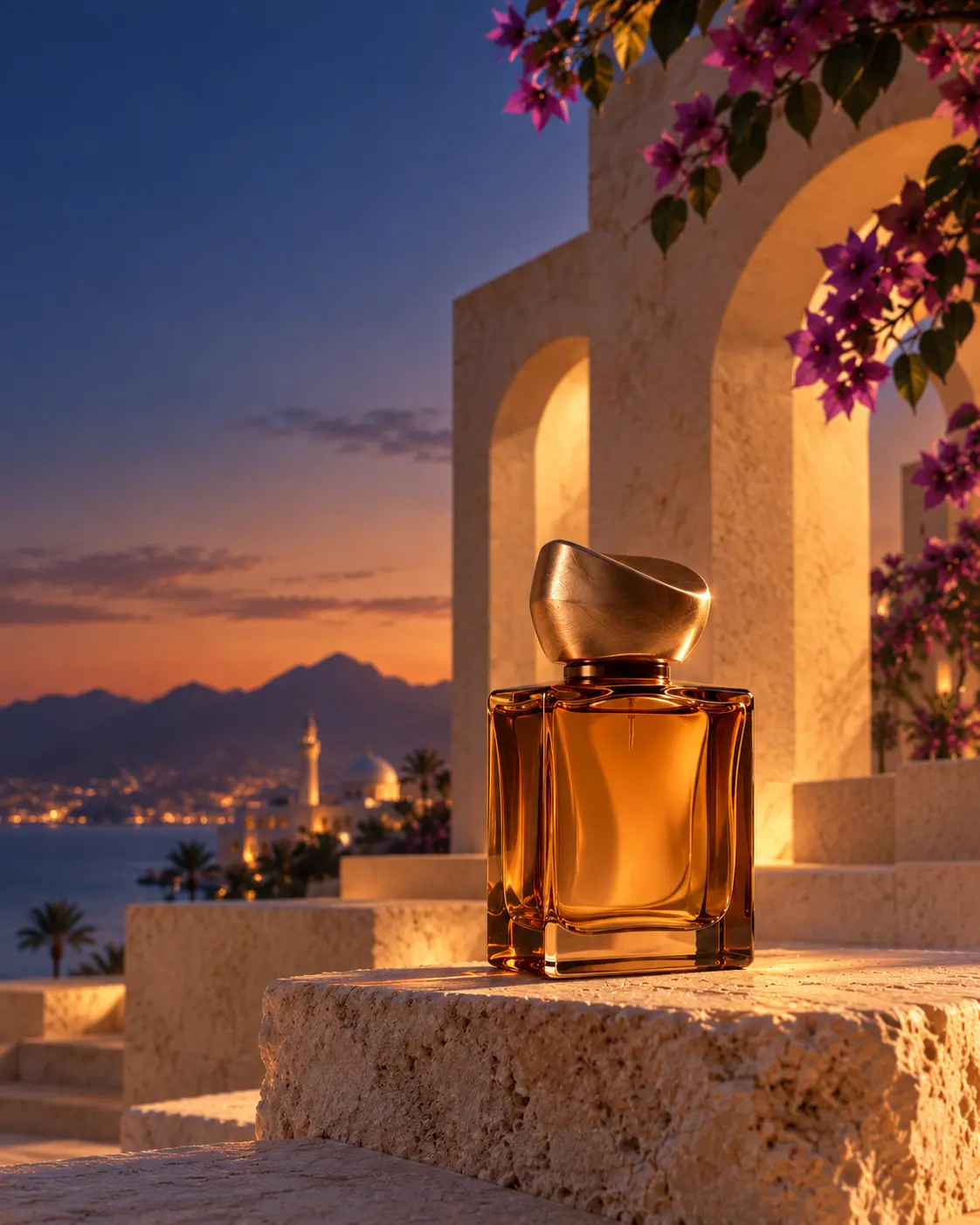
- calm neutral background versus a richer blue-hour atmosphere;
- wide negative space versus a tighter crop.
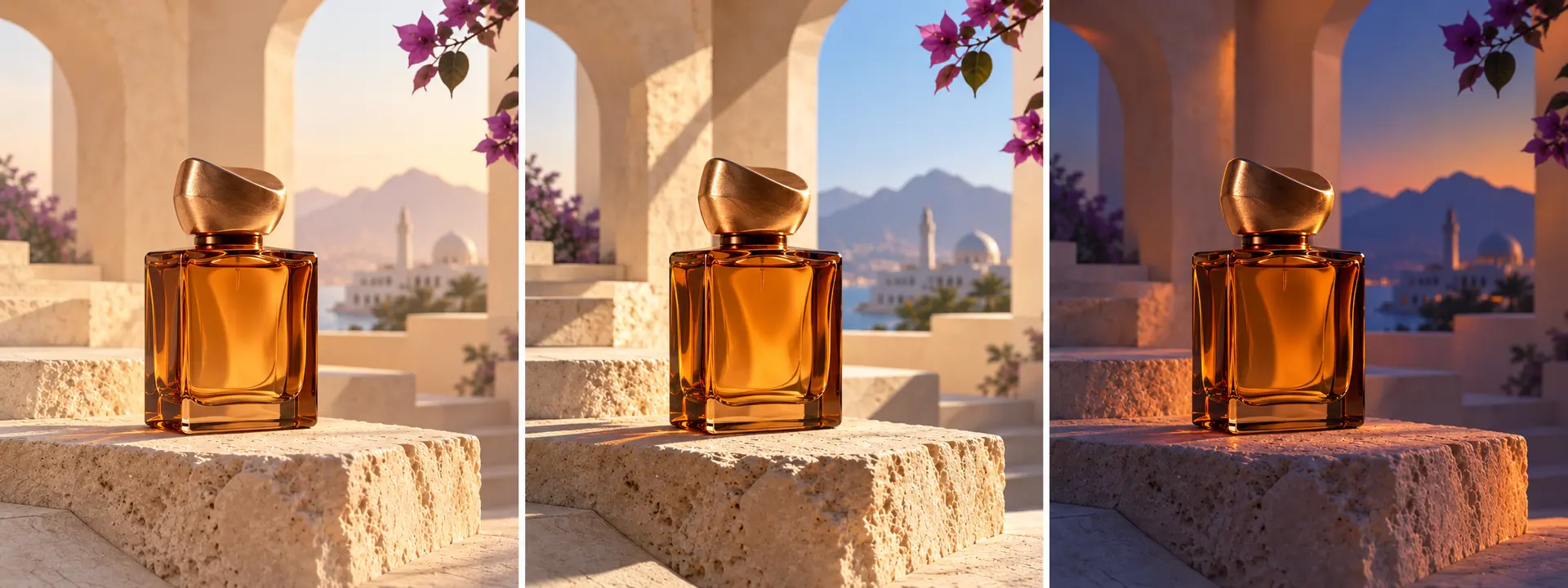
When comparing results, ask whether the image solves the brief. The most dramatic option is not automatically the most useful. A quieter frame may leave better space for copy, reproduce more cleanly, or feel closer to the intended customer.
Refine the winner instead of restarting
Once a direction works, preserve it. Small, purposeful changes are usually more productive than returning to a blank prompt. Inspect the product silhouette, edges, reflections, background geometry, and empty space. Decide what must be corrected and what can remain natural.
Keep the selected generation in the Asset Library, then open it in the Precision Image Studio when it needs finishing work such as crop, resize, rotation, layout preparation, or more focused AI-assisted editing. The generator develops the visual direction; the editor prepares the asset for use.
A practical Image Studio walkthrough
- Open Image Studio. Begin with the brief, not an empty stream of adjectives.
- Choose a model. Check which ratios, resolutions, references, and output counts it supports.
- Write the structured prompt. Add subject, scene, composition, lighting, treatment, and constraints.
- Use Enhance Prompt when helpful. Review the enhanced wording and keep creative control over the result.
- Select the canvas and resolution. Match the final placement before generating.
- Add references if supported. Use them to preserve a product, character, palette, or composition.
- Review estimated cost. Confirm the credit and OMR view before starting the job.
- Generate and compare. Select the strongest result against the original brief.
- Save and refine. Keep useful results in the Asset Library and continue in the precision editor when needed.
Common problems and better corrections
| Problem | What to change |
|---|---|
| The image feels generic | Replace vague style words with composition, material, and lighting decisions. |
| The crop is wrong | Choose the destination ratio first and request negative space in a named area. |
| The product keeps changing | Use a suitable reference and repeat the non-negotiable product details. |
| Every result is unrelated | Keep one successful prompt and change only one variable per pass. |
| Generated lettering looks unreliable | Create the visual without critical copy, then add typography during layout or editing. |
| The scene is overloaded | Name one hero subject and remove decorative objects that do not support it. |
Questions people ask about AI image generation
What is the best structure for an AI image prompt?
A strong starting structure is subject, scene, composition, lighting, visual treatment, and constraints. You do not need every field for every image, but this order keeps the important decisions clear.
Should I always generate at the highest resolution?
No. Use a practical resolution while exploring ideas, then choose a supported higher resolution for a direction that deserves final production. This can reduce wasted generations and makes comparison faster.
Do reference images replace a good prompt?
No. A reference preserves a visual fact; the prompt explains what to do with it. The two work best together.
How many variations should I make?
Enough to compare a meaningful decision. Three or four controlled options often teach you more than a large batch of unrelated images.
Do AI-generated images still need editing?
Often, yes. Generation establishes the concept and gives you strong source material. Cropping, layout, typography, and final quality checks turn that material into a production asset.
Your final pre-generation checklist
- The image has one clear job.
- The main subject is specific.
- The scene supports the subject.
- The composition matches its destination.
- The lighting creates the intended feeling.
- References are purposeful and permitted.
- Constraints protect important details.
- The estimated cost is understood.
Good prompting is less like placing an order and more like giving creative direction. Start with a brief, make one clear decision at each step, and judge every result by the job it needs to perform. When you are ready, open Image Studio with the example prompt below and adapt it to your own product, audience, and format.
Try this prompt
Premium editorial product photograph of one unbranded amber glass fragrance bottle with a sculptural cap, placed on a warm limestone pedestal inside contemporary Muscat-inspired arches. Bottle slightly right of centre with generous negative space on the left, low camera angle, warm early-morning side light, controlled highlights on the glass, natural stone texture, restrained violet flowers in the distance. No people, no logo, no readable text, no extra products, no watermark.
From reading to creating
Your next idea starts here.
Open the workspace, explore your options, and create when you’re ready.
Try this workflow in Image Studio ↗Written by Aiwa Creators
Practical guidance from the Aiwa Creators team for turning ideas into production-ready image, video, voice, and media assets.