

Guide
From One AI Image to a Complete Campaign: Editing, Upscaling & Production-Ready Visuals
Turn one approved AI image into a coordinated campaign with practical editing, honest upscaling, intentional crops, brand typography, export checks and a ready-to-use workflow.
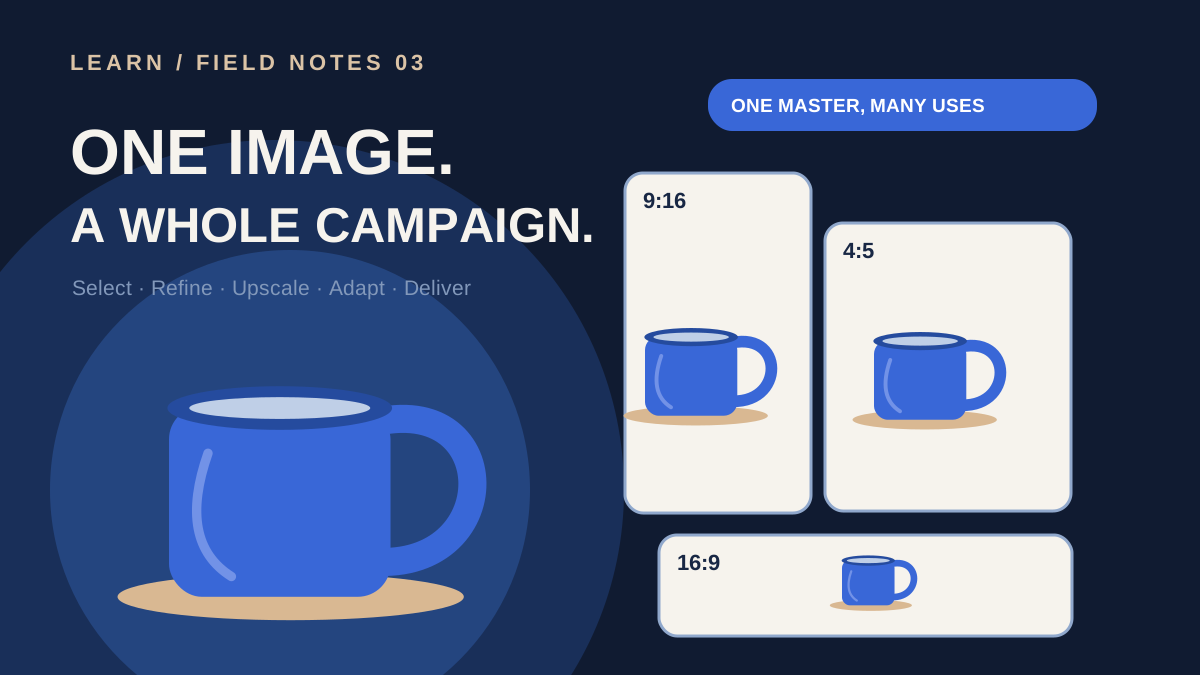
One master, many destinations
Make the image useful everywhere.
The master stays protected while deliberate changes create a family of formats. Each arrow represents a reviewable production decision, not automatic image perfection.
Finish for the destination.
01
Select
Protect the master
02
Refine
Fix only the defects
03
Upscale
Inspect real detail
04
Adapt
Recompose each format
05
Deliver
Verify every export
The hardest part of an AI image campaign often begins after you have generated an image you love. The cup is beautiful. The light is right. Then a website needs a wide banner, social needs a vertical story, the product team asks for a clean square, and a client requests a print-ready poster. Stretching one file into every slot is how a promising concept becomes an inconsistent campaign.
This is the third guide in our image-generation series. The first established a repeatable prompt-to-final workflow; the second explored composition, lighting and visual consistency. Now we will take our handmade cobalt-blue ceramic cup from a single approved master to a small, coordinated campaign that survives real production constraints.
A hero image is a starting point, not a complete deliverable. Production is the art of preserving its intent through every format.
Begin with an asset brief, not an upscale button
Before editing, map the actual destinations. A beautiful portrait crop might be perfect for a story yet impossible to turn into a wide banner without extending or rebuilding its background. Identify which frame is the visual master, what must remain unchanged, which copy will be added later, who approves the result, and how each asset will be used. This prevents expensive polishing of a frame that cannot serve the campaign.
| Deliverable | What it must communicate | What to protect |
|---|---|---|
| Website hero | A single clear product and space for a headline | Copy-safe negative space and responsive crops |
| Feed post | A strong product-led impression at small size | Recognisable silhouette and legible contrast |
| Vertical story | A close atmospheric moment | Top and bottom UI-safe margins |
| Product detail | Texture and shape without confusion | Glaze, handle, real product proportions |
| Print concept | A clean, reviewed high-resolution composition | Physical dimensions, bleed and honest pixel quality |
These are planning examples, not universal export specifications. Confirm the sizes and file rules of the actual publishing channel or printer before delivery. Decide separately whether any image will need an exact logo, regulated claim, product label or licensed typeface.
1. Choose a master worth protecting
Select your strongest generation against the original brief, not just against the other thumbnails. Does the cup still have the rounded handle and subtly irregular glazed rim? Is the light coherent? Can the image accept copy? Are the edges, reflections, visible patterns and background believable at 100% zoom? Save the approved version separately rather than repeatedly editing your only copy.
Make a tiny asset note beside it: source or generation identifier, model and settings if available, prompt/reference provenance, intended licence or permissions, approved palette, and the non-negotiable product features. If a reference image belongs to someone else, make sure your use is permitted. This note becomes valuable when a teammate asks why one variant looks different.
Name the master and every derivative clearly
cobalt-cup/master-approved-v01.png
cobalt-cup/web-hero-v01.webp
cobalt-cup/feed-portrait-v01.webp
cobalt-cup/story-vertical-v01.webp
cobalt-cup/product-detail-v01.webp
cobalt-cup/print-review-v01.png
Version numbers are boring until an urgent revision arrives. Keep the unmodified original, record what you changed, and never overwrite the source with an experimental enhancement.
2. Edit the problem, not the entire image
A common mistake is rerunning the whole prompt because one reflection, edge, or background prop looks wrong. First classify the defect. Composition problems need crop or reframe decisions. Unwanted objects may need targeted removal or a new generation. Incorrect product shapes or invented branding should be checked against a verified source rather than disguised with a sharpening filter. If a tool does not support the needed operation, use a capable editor instead of forcing an unsuitable model.
Use the smallest reliable intervention
- Crop or straighten only after checking that the destination still has its required breathing room.
- Correct a distracting corner or background object without changing the hero product where the chosen tool supports local edits.
- Preserve believable material and texture; avoid plastic-looking noise reduction and excessive local contrast.
- Check hands, repeated details, transparent or reflective edges, unusual lettering and geometric continuity at actual export size.
- Compare the revised result to the master side by side, so a visually impressive edit does not silently change the product.
Precision Image Studio is the appropriate follow-on for supported crop, resize, rotation and image-editing controls. MediaKit capabilities vary by enabled tool and account; check their actual availability and prices in the interface. Keep operations non-destructive where possible and retain the master so you can revisit a decision.
3. Know what upscaling can—and cannot—do
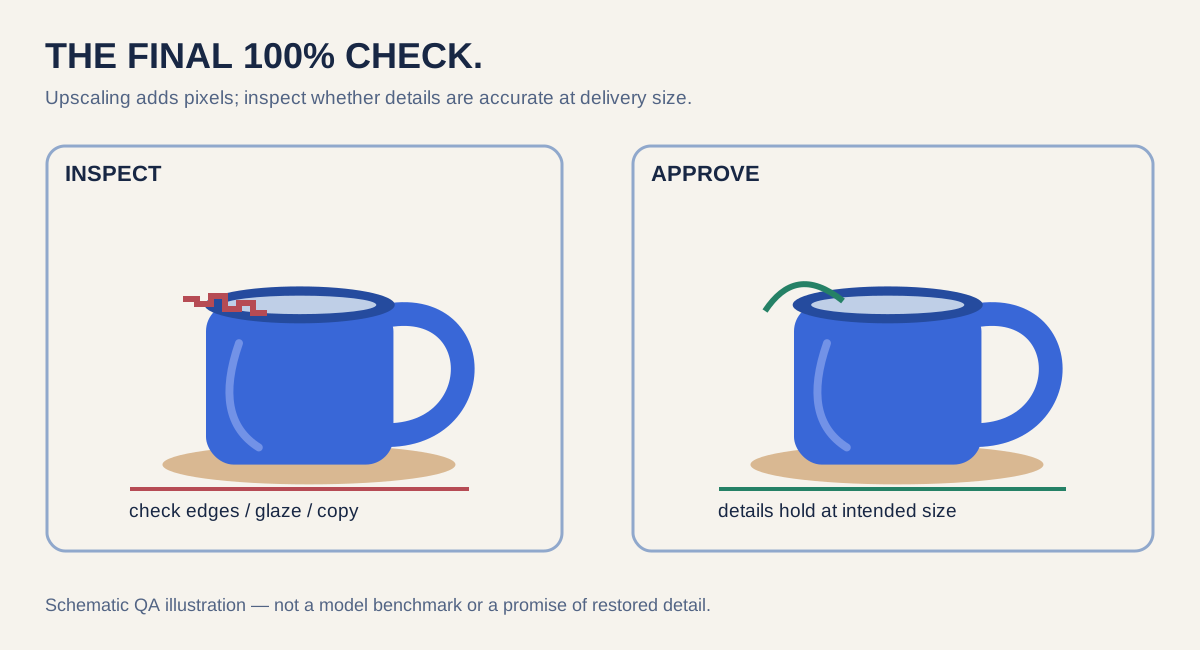
Upscaling adds pixels so an image can be delivered at a larger size. Traditional resizing interpolates existing information; AI-assisted enhancement may infer detail. Neither is a reliable way to recover writing that was never correct, authenticate a product texture, or repair a fundamentally bad composition. A higher pixel count is not the same thing as a more accurate image.
Calculate from the destination backward
For a concrete example, a design printed at 8 × 10 inches at a requested 300 pixels per inch needs approximately 2,400 × 3,000 pixels, before considering the printer’s bleed and workflow. That is a useful calculation, not a claim that every print requires 300 PPI. Ask your print provider for the final dimensions, effective PPI, bleed, colour profile and accepted file type. For digital placements, follow each destination’s current dimensions and compression requirements.
Upscale only the version whose composition is approved, inspect at 100%, and compare fine edges, ceramic glaze, shadow transitions and any human or product features. Be cautious of invented micro-textures and halos. If the result fails review, try a different supported enhancement configuration or return to the source rather than endlessly re-upscaling the same derivative.
An upscale is successful when the image remains convincing at its intended viewing size—not merely when its file dimensions increase.
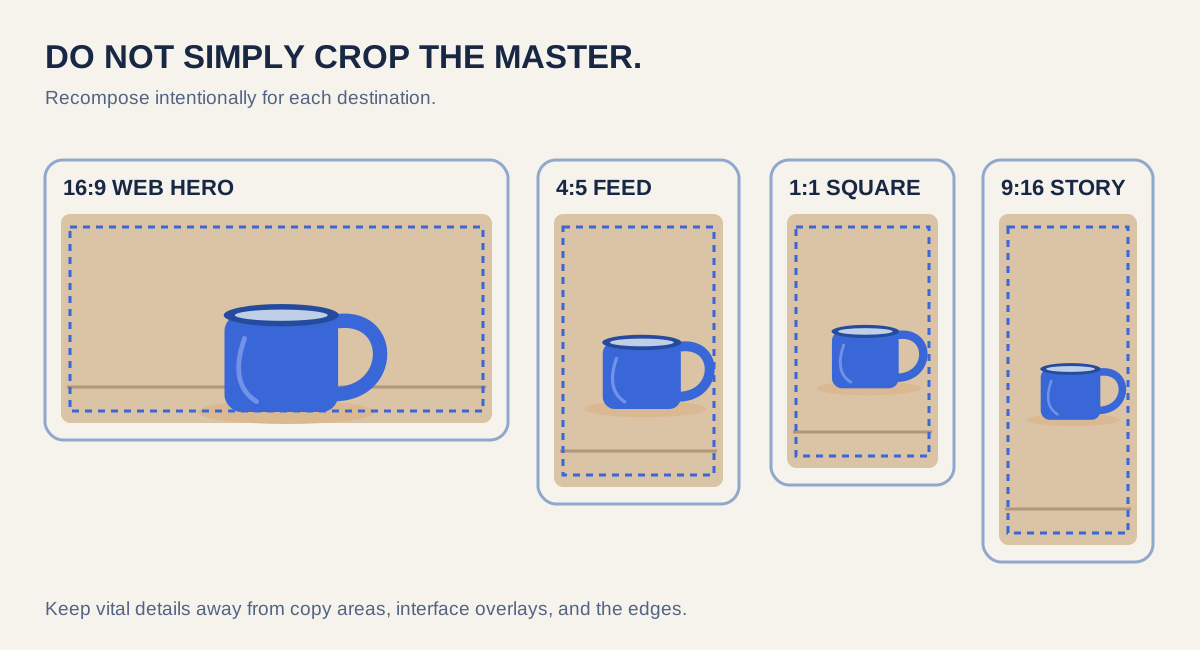
4. Adapt the composition instead of making four blind crops
A single visual idea may support several sizes, but different shapes tell different stories. Start from the master and make an art-directed version for each destination. A horizontal hero can give the cup space on one side for a headline; a square feed post needs a stronger focal point; a vertical story may need additional scene above and below the cup. Where the chosen model supports outpainting or extension, use it to create new surrounding space, then inspect seams, perspective, shadows and consistency. Otherwise, regenerate a compatible composition using the master as a reference where supported.
Think in safe zones rather than ratios alone
Leave room for website headlines, social interface overlays and mobile crops. Do not place critical words or product details at the edges. Preview the design inside a realistic page, feed and story frame; a crop that looks balanced in isolation can fail in context. Avoid treating nominal ratios as proof of platform compliance: placement specifications change and should be checked before publishing.
5. Add brand typography and verified copy after generation
Generated typography can look convincing while spelling the product name or an offer incorrectly. Keep the photographic master free of essential wording. Create a simple brand system with approved type, spacing, logo handling, palette, contrast and message hierarchy; then place verified copy in a layout tool. Do not bake misleading claims or invented product information into the campaign.
For our fictional cup launch, the website hero might carry a short headline and supporting line on the open side of the image. A feed post can use a smaller headline or no overlay at all. A story needs fewer words and space for platform interface controls. Confirm that each version is legible on a narrow phone, meets accessible contrast expectations, and includes useful alternative text when the publishing surface allows it.
Separate the master visual from the finished ad
This division makes future changes inexpensive. A price, date or CTA may change without forcing another image generation. Keep source files or editable layout documents alongside final flattened exports. Do not claim image-generation tools are a replacement for professional layout, rights review, packaging verification or a printer’s preflight process.
6. Build a coherent campaign kit
Before exporting, lay every variation next to the approved master. Look for drift: did the cup turn into a different shape, lose its cobalt colour, gain an impossible handle or acquire contradictory shadows? Check that the supporting stone, chalk, warm sand and ink tones still feel related. Cohesion does not require the same camera angle in every frame; it requires a recognisable product and intentional design language.
- Master and editable source: original plus clearly named approved derivative.
- Channel exports: hero, feed, story, product detail and any print-review file actually needed.
- Copy and design notes: approved wording, typography, palette and safe areas.
- Accessibility and rights: descriptive alt text, ownership or reference permissions, and any required disclosures.
- Review record: who approved which version, what changed, and where the final files will be used.
The Asset Library can help organise generated media. Storage choices and BYOS integrations depend on the workspace configuration; avoid promising an automatic handoff that your current setup has not enabled. A zipped handoff is useful only if files inside are correctly named, reviewed and accompanied by an obvious readme.
A campaign-ready export checklist
| Gate | What to verify | If it fails |
|---|---|---|
| Visual truth | Shape, glaze, reflection and subject identity match the approved master | Return to the source or correct the specific defect |
| Layout | Nothing vital falls under a crop, headline or interface overlay | Recompose, extend or choose another master |
| Resolution | Actual output dimensions suit the destination | Re-export or upscale the approved version and inspect again |
| Colour and file | Correct colour workflow and accepted format for delivery | Follow platform/printer requirements; check on target devices |
| Copy and rights | Text, claims, logo, fonts and references are authorised | Fix copy or obtain permission before publishing |
| Approval | Client/team signs off the correct named versions | Hold release and preserve the previous approved version |
A practical mini-project: make five assets from one cup
- Select the blue-cup master from the previous guide, confirm its silhouette and record your visual rules.
- Create one clean product version with minimal distractions, keeping the source untouched.
- Make a wide website hero with the cup right of centre and generous empty space for copy.
- Create a 4:5 feed composition and a 9:16 vertical story, using intentional recomposition rather than automatic cropping alone.
- Prepare a close product-detail frame, and only upscale a selected export if its final destination needs it.
- Add real copy in layout, inspect previews on mobile and desktop, complete the checklist, and save clearly named final files.
A reusable edit/extension brief
Preserve the exact cobalt-blue ceramic cup from the approved reference: rounded handle, slightly irregular glazed rim, material and colour unchanged. Extend the pale limestone setting into a wide landscape composition with negative space on the left for later typesetting. Match the existing soft morning light direction, shadows, perspective, grain and texture. Do not invent labels, lettering, a second cup or new product details. Deliver the background and product image without marketing text.Treat this as an editable starting brief, not a guarantee that every model offers reference conditioning or outpainting. Choose supported capabilities, review the pre-generation quote in credits and OMR, and compare the result to your master before accepting it.
Questions people ask before delivery
Should I upscale before or after cropping?
Start with the destination and approve its composition before the final upscale. However, do not throw away source pixels unnecessarily: retain the high-quality master, and use the best available source for each derivative. Confirm the selected tool’s requirements before choosing an order.
Can I make every format from the exact same pixels?
Sometimes, when the subject is safely framed and the target crops are compatible. Often a vertical story and wide hero need different compositions. The goal is consistent direction, not mechanically identical framing.
Does AI upscaling make an image print ready?
No. Pixel dimensions are one checkpoint. Inspect inferred details and follow the printer’s specifications for effective resolution, bleed, colour profile, file preparation and proofing.
What if the generated image contains incorrect product packaging?
Use verified product material, licensed references and appropriate editing or layout tools. If fidelity is essential, do not publish an unverified AI approximation as if it were the real product.
The difference between a good image and a useful campaign
A strong AI image is an achievement. A dependable campaign is a system: a preserved source, deliberate corrections, reviewed detail, format-aware composition, verified copy and clear approvals. When all five assets sit together, the viewer should recognise one brand story rather than five unrelated generations. That is when a single image becomes reusable creative value.
Try this prompt
Create an editorial product photograph of one handmade cobalt-blue ceramic coffee cup, rounded handle and subtly irregular glazed rim, on pale limestone. Compose the cup right of centre in a wide landscape hero with ample quiet negative space left for later typography. Soft morning window light, tactile stone, restrained cobalt, chalk and warm-sand palette, natural shadows and clear product silhouette. No second product, invented logo, readable text or watermark.
From reading to creating
Your next idea starts here.
Open the workspace, explore your options, and create when you’re ready.
Create your campaign in Image Studio ↗Written by Aiwa Creators
The Aiwa Creators editorial team shares practical workflows for turning ideas into finished media, focusing on creative control, honest quality checks and responsible production.